WordPress autoload optimization is the work of trimming your wp_options table so WordPress stops loading megabytes of unused data into memory on every request, and it is one of the cheapest, large-speed wins available on an older site. On a WordPress install that has been live more than 18 months, there is a good chance autoload bloat is quietly adding 200 to 400ms to your time to first byte (TTFB, how long the server takes to start replying), and the fix is usually a thirty-minute job.
Here is the trap in plain terms. Every page load, WordPress fetches everything in wp_options marked to be autoloaded and held in memory. That is efficient on a fresh install with a couple of hundred small rows. It becomes a problem because plugins are free to add autoloaded data whenever they like, there are no size guardrails, and most plugins never clean up after themselves when you uninstall them. A site that has tried thirty plugins over three years can carry 5 to 10MB of autoloaded data, much of it from plugins deleted years ago. (For the full "what is autoload and why does it bloat" explainer, see [our autoload bloat guide] — link this to your existing autoload-bloat post.)
This guide is the hands-on fix: the diagnostic queries to measure it, the three-bucket cleanup from safest to riskiest, and how to stop it coming back.
Why a few extra megabytes hurts so much
People wave this off because "a few megabytes" sounds trivial. The cost is not the storage; it is what happens on every request:
The query takes longer. A 5MB result from a table scan can take 80 to 200ms on its own.
PHP has to deserialize all of it. Most autoloaded options are PHP-serialized arrays, and unserializing 5MB adds another 30 to 60ms.
It runs on every uncached request. Your page cache hides this from your team but exposes every cold-cache visitor and every bot to the full penalty.
It runs on AJAX and REST requests too. Every admin AJAX call, every WooCommerce API call, every webhook handler pays the tax.
On stores that have never cleaned it up, we routinely see 200 to 400ms of TTFB attributable to autoload alone. That is the time every single uncached visitor waits before your server even starts responding.
WordPress autoload optimization: the diagnostic queries
Run these against your database with WP-CLI, phpMyAdmin, or any SQL access. Reading the table this way is completely safe and changes nothing.
Total autoload size
SELECT
  ROUND(SUM(LENGTH(option_value)) / 1024, 1) AS autoload_kb,
  COUNT(*) AS row_count
FROM wp_options
WHERE autoload = 'yes';
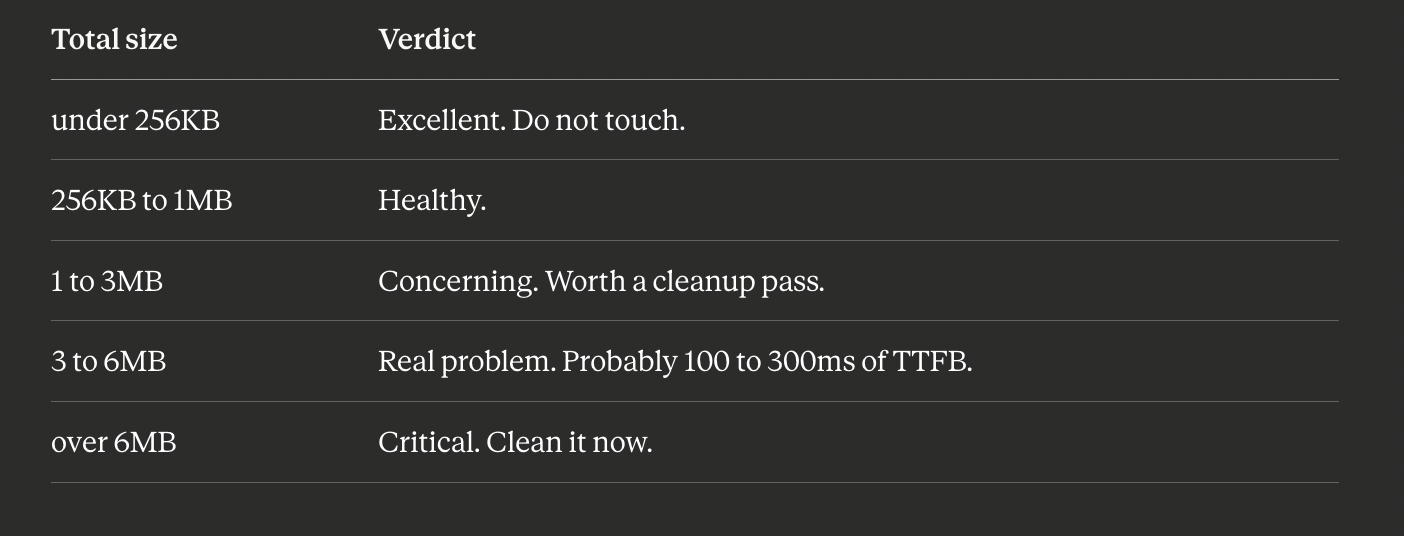
What good looks like:
Top 30 largest autoloaded options
SELECT option_name, ROUND(LENGTH(option_value) / 1024, 1) AS kb
FROM wp_options
WHERE autoload = 'yes'
ORDER BY LENGTH(option_value) DESC
LIMIT 30;
This is the high-value query. The largest 30 rows almost always account for about 80% of the bloat. You will typically see things like an SEO plugin's taxonomy meta weighing hundreds of KB, settings left behind by an uninstalled WooCommerce extension, rewrite_rules at a couple hundred KB (this one is normal, leave it alone), and transients that were accidentally autoloaded.
Orphaned plugin options
SELECT option_name, ROUND(LENGTH(option_value) / 1024, 1) AS kb
FROM wp_options
WHERE autoload = 'yes'
  AND option_name NOT LIKE 'wp\_%'
  AND option_name NOT LIKE 'theme\_%'
  AND option_name NOT LIKE 'rewrite\_%'
ORDER BY LENGTH(option_value) DESC
LIMIT 50;
Anything starting with a plugin's prefix (for example wpseo_, woocommerce_, elementor_) for a plugin you have uninstalled is orphaned bloat that should be removed.
Before you delete anything: back up first
The wp_options table runs your whole site, so a careless write here can break it, and on a WooCommerce store a bad change can interrupt checkout and cost real orders. The rule is simple: back up your database before changing or deleting any rows. A backup turns a risky change into a reversible one. Reading the table (the queries above) is safe; only writing and deleting require a backup.
The fix: three buckets, safest first
Bucket 1 (safe): orphaned options from uninstalled plugins
If an option_name starts with the prefix of a plugin you no longer have installed, it is safe to delete. Delete one specific row at a time:
DELETE FROM wp_options WHERE option_name = 'name_from_query';Always target one exact option_name. Never use a wildcard LIKE in a DELETE until you are completely certain what it matches.
Bucket 2 (medium risk): switch rarely-read options to autoload no
Some legitimate plugin options are autoloaded but only read on admin pages, so they do not belong in the autoload set at all. Common offenders include SEO plugins, sitemap caches, and the scheduled-task state of analytics plugins. Flip them without deleting:
UPDATE wp_options SET autoload = 'no' WHERE option_name = 'option_name_here';The plugin still finds the option through get_option(); it just stops loading into memory on every request. Worst case, a single uncached lookup later adds a few milliseconds.
Bucket 3 (risky): clear orphaned transients
Transients are temporary values that should expire on their own (WordPress's store for temporary data with a built-in expiry), but failed cron runs leave orphans behind. Find them:
SELECT option_name FROM wp_options
WHERE option_name LIKE '_transient_%'
   OR option_name LIKE '_site_transient_%'
LIMIT 100;
The safest way to clear them is the WP-CLI built-in, which goes through the proper API and is plugin-aware:
wp transient delete --allHow to stop it coming back
Cleaning autoload once is a band-aid. Preventing regressions is the real fix:
Check
wp_optionssize after every plugin install. A 30-second look after activating a new plugin catches the worst offenders early.Use a proper uninstall hook in your own plugins. If you write plugins, register
register_uninstall_hookto delete your options on removal. Most plugins skip this; you can be the exception.Set up a weekly size check. A small cron that emails the autoload size weekly catches the creep before it becomes a problem.
Object cache helps, but is not a cure. Redis-based object caching reduces the repeat cost, but the first request after any cache flush still pays the full price. The only real fix is keeping autoload small.
How BoltAudit automates all of this
If you would rather not hand-run SQL, the whole diagnosis can be automated.
[Make the word BoltAudit below a link with the chain/link button: https://wordpress.org/plugins/boltaudit/]
BoltAudit is a free, AI-powered WordPress performance audit plugin that runs more than 200 read-only checks across frontend, backend, database, and infrastructure in under 90 seconds. Its database layer runs the queries above (and more), then reports your exact autoload size, the top bloated rows, and the projected TTFB win from cleanup. When autoload is your bottleneck, the report gives you ready-to-paste SQL, so the fix becomes a copy-and-paste job. Read-only means BoltAudit never writes to your database or deletes anything itself, so it is safe to run on a live production or WooCommerce site. Audits are located under Tools> BoltAudit in your WordPress admin.
Run it on your site
Before you spend an afternoon optimizing JavaScript that was never the real problem, find out whether autoload is on your top-ten fix list. Install BoltAudit free, run a Local Audit from Tools, then BoltAudit, and let it measure your autoload size and hand you the exact rows to trim.
Run BoltAudit on your site
Free plugin · 1 site · 3 audits per month · no credit card.