A slow WooCommerce checkout is the most expensive kind of slow there is, because checkout is the one page where a delay does not cost you a visit; it costs you a sale. A homepage that takes 4 seconds to load gets a bounce. A checkout that takes four seconds results in an abandoned cart, and sometimes in a charged payment attempt that never completes. Baymard Institute research puts checkout abandonment at around 70% across e-commerce, and performance is consistently among the top reasons people give for leaving.
Here is the uncomfortable part: your checkout is almost certainly slower than the rest of your store, and the usual speed advice (enable caching, compress images) barely touches it. Think of your store as a restaurant. Most pages are the menu, which you can photocopy and hand out instantly. Checkout is the kitchen taking a custom order: it cannot be pre-made, it has to communicate with suppliers in real time, and every extra step occurs while the customer waits at the till. That is why checkout needs its own playbook.
This guide explains why checkout is uniquely slow, then walks through the four layers of a WordPress site in the exact order they tend to be at fault during checkout, so you can fix the highest-impact thing first.
Why does a slow WooCommerce checkout behave differently from any other page
Checkout is unique in WordPress for three reasons that make it harder to speed up than any other URL on your store:
It cannot be page-cached. Checkout shows user-specific cart contents, shipping totals, and form state, so caching plugins skip it by design. Every checkout view hits your origin server uncached, which means it runs at your real backend speed with no cache to hide behind.
It runs every payment, shipping, and tax plugin at once. Loading the checkout fires WooCommerce's checkout init, which runs every gateway's availability check, every shipping method's rate calculation, and every tax lookup, often via live API calls to external services, before the page can render.
It is rendered by your theme like any other page. So it also carries all the render-blocking JavaScript, oversized images, and heavy fonts on your homepage, except now stacked on top of an already-slow, uncached request.
The result is the worst of every layer at once. A 200ms regression on the homepage is barely noticed. The same 200ms at checkout results in a measurable drop in completed orders.
The four layers, in checkout priority order
This is the audit walk in the order the bottleneck usually appears on checkout, specifically. (For the general version of this framework, see [the four layers of WordPress performance] and link it to your four-layers post.)
Layer 1: Backend (the usual culprit)
For most WooCommerce stores, the checkout bottleneck is in the backend: PHP, hooks, plugins, and external API calls. Three offenders dominate.
Payment gateways are doing live availability checks. Every gateway you have installed runs an availability check on every checkout load. Most just read a setting and return instantly. But some, especially fraud-detection plugins, buy-now-pay-later providers, and license-checked plugins, make a live API call. Three such plugins, adding 200ms each, is a 600ms penalty on every checkout. Fix: deactivate any gateway you are not actively using, and for the ones you keep, turn off any "verify license on each request" or "live availability check" setting.
Shipping methods recalculating rates from scratch. Zone matching is fast, but live rate calculation can be brutal, especially with ShipStation, EasyPost, or courier-specific live-rate plugins that call an external API per cart and often do not cache the result. Fix: enable WooCommerce's built-in shipping rate cache, and consider using flat rates, reserving live rates only for international zones. We have seen this one change drop checkout TTFB (time to first byte, how long the server takes to start replying) by 800ms.
Tax providers are calling out on every change. Avalara, TaxJar, and similar make a synchronous external call on every cart change. Fix: cache the tax response for longer, or move tax calculation to the post-order step instead of the live cart.
A fast diagnostic: deactivate every non-core WooCommerce extension (everything that is not payments, shipping, or tax) and reload checkout. If TTFB drops by more than 300ms, an extension is your problem; reactivate them one at a time to find the culprit.
Layer 2: Database
Checkout hits the database harder than any other page. Three things to check.
Autoload bloat. Every page load reads the autoloaded rows of wp_options, and stores running two or more years often carry 1 to 6MB of stale settings from deactivated plugins. (Autoload is the data WordPress loads on every request, whether the page needs it or not; see [our autoload bloat guide] and link it to your autoload post.) Measure it:
SELECT SUM(LENGTH(option_value)) / 1024 AS autoload_kb
FROM wp_options WHERE autoload = 'yes';
Over 1024 (1MB) is a real problem; over 3MB is roughly a 200ms penalty on every uncached page, checkout included.
Session table contention. High-traffic stores see heavy contention on wp_woocommerce_sessions. The default cleanup runs once a day, so on a busy store, that table can swell to hundreds of thousands of rows by mid-afternoon, slowing every cart and checkout query. Fix: schedule a more aggressive cleanup, or move sessions to Redis.
Order metadata fanning out. Order data in wp_postmeta Is often read with N+1 lookups (the same query repeated once per field instead of batched once). Fix: migrate to High-Performance Order Storage (HPOS), which gives you indexed order columns instead of generic postmeta lookups.
Layer 3: Frontend
Usually a smaller win than the backend on checkout, but the most visible to the customer. Three checks.
Render-blocking checkout scripts. WooCommerce ships several scripts that block rendering on checkout, plus whatever your payment gateways enqueue (Stripe, for example, loads its script synchronously by default). Defer or async every script that does not need to run before paint, and load gateway scripts only on the gateway's actual checkout panel.
Heavy fonts on a functional page. Many themes load four to six font weights on every page. Checkout needs regular and bold at most. Subset, self-host, and use font-display: swap.
Duplicate address autocomplete plugins. Address-completion plugins each load a sizable JavaScript bundle, and you only need one. If you have several, keep one and deactivate the rest.
Layer 4: Infrastructure
The smallest lever, worth checking only after the other three. If you are still on cheap shared hosting after fixing layers 1 to 3, you have likely hit the ceiling of what that hosting can do for an uncacheable page. Signs infrastructure is the real bottleneck:
Uncached TTFB stays over 800ms even with all non-core extensions disabled.
Adding PHP workers does not help.
The host's CPU is pinned during normal traffic.
Object caching (Redis) is not available on your plan.
If three of those four are true, moving to a host with managed Redis and WordPress-tuned PHP-FPM gives a real win. But do layers 1-3 first. Most stores get a faster checkout by removing one shipping plugin than by changing hosts.
Before you change anything: back up first
Several of these fixes touch live plugin settings, the database, and session storage on a store that is actively taking orders, where a bad change can interrupt checkout and cost real sales. The rule is simple: back up your database and files, and test in staging before making any change you cannot instantly undo. A backup turns a risky change into a reversible one.
Symptom to layer: where to look first
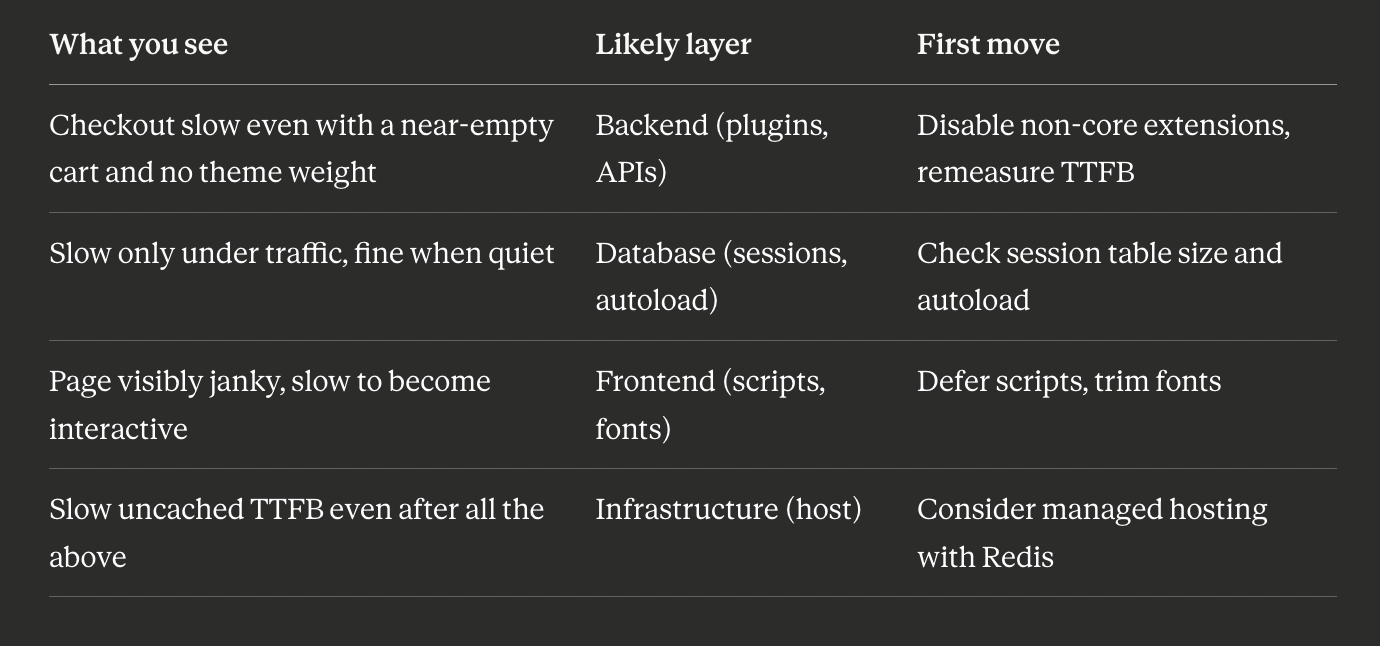
The order of operations
If you fix one thing this week:
Measure uncached TTFB on
/checkout(curl with a cache-busting query string).Deactivate every non-core WooCommerce extension and remeasure. A drop over 300ms means a backend extension is the problem; reactivate one at a time to find it.
Run the autoload size check above and clean it if it is over 1MB.
Only then do the frontend audit.
If you fix one thing this month: migrate to HPOS, audit your shipping and tax plugins, and move session storage to Redis. That stack holds a stable checkout under Black Friday load.
How BoltAudit runs this whole walk for you
Doing all four layers by hand, in order, with measurements, takes real time. You can have it done automatically.
BoltAudit is a free, AI-powered WordPress performance audit plugin that runs more than 200 read-only checks across frontend, backend, database, and infrastructure in under 90 seconds. On a WooCommerce store, it runs this exact four-layer checkout walk and returns specifics, not platitudes: which shipping plugin is adding how many milliseconds, your current autoload size, which scripts are render-blocking, and the order to fix them in for a projected time saving. Read-only means it never writes to your database, toggles plugins, or edits files, so it is safe to run on a live store mid-trading. Audits are located under Tools> BoltAudit in your WordPress admin.
Run it on your store
If your checkout feels slow and you are guessing at why, stop guessing. Install BoltAudit free, run a Local Audit from Tools, then BoltAudit, and let it name the one layer costing you the most completed orders, with the fix for each.
Run BoltAudit on your site
Free plugin · 1 site · 3 audits per month · no credit card.